

Home power users
One or two internal disks plus a USB vault—enough signal to justify a simple alert rhythm.
This domain is a small editorial project about disk health, not a storefront. We talk about SMART, heat, and backup drills in ordinary language.
Many people use a desktop disk-monitoring tool on Windows; these pages focus on practical usage and clear explanations.
Start here
You do not need to memorize every SMART attribute on day one. Skim the map below, pick one habit that fits your week, and bookmark the glossary when a forum thread throws acronyms at you.
Everything here is educational. Verify critical steps with official documentation and your own backups.
Pick a starting point
SMART terms, temperature context, and what “pending sectors” usually imply.
Jump to vocabularyA reading order when you want structure instead of random blog hops.
Open the reading mapLight weekly checks and seasonal audits you can actually keep.
See cadence ideasBaselines, alerts, and when to trust or doubt the first graphs.
Open onboardingOn this page
These anchors match sections below—jump mid-page without scrolling the whole story.
Desktop lane
Internal SATA/NVMe is the cleanest SMART path. Log chassis fan curves after BIOS updates, and note which slot holds the OS disk so alerts name the right victim.
Portable lane
USB and TB chains dominate noise. Prefer one trusted dock, avoid daisy-chaining unknown hubs for the disk you care about, and screenshot SMART before and after travel.
Why monitoring is a habit, not a purchase
Software can surface patterns early, but only if you look when nothing is on fire. The goal is a boring chart: stable temperatures, flat attribute slopes, and alerts that match how you actually use the machine. Below are three reasons people keep a lightweight habit instead of chasing perfect percentages.
If you are new, pair this page with First weeks for a timed checklist, then open What to read when you want depth on alerts, thermals, or USB bridges.
Same hour, different job
Gaming night: watch GPU-adjacent NVMe temps. Render farm weekend: watch sustained writes and scratch disk TBW. Tax season: verify backup restores for exports, not just SMART green. One habit—note workload in the margin when you screenshot.
Who might care
No datacenter required—just work you cannot recreate in an afternoon: contracts, photos, finance exports, or saves you are tired of replaying.
One or two internal disks plus a USB vault—enough signal to justify a simple alert rhythm.
Project disks and scratch SSDs age unevenly—trend lines catch the noisy one before deadline week.
Windows hosts with DAS or iSCSI benefit from desktop-grade SMART views the hypervisor glosses over.
Pull suspect disks to a PC for a second opinion when appliance UIs feel vague.
Long OBS writes and scratch SSDs hide wear behind “everything feels fine”—log TBW against project seasons, not calendar months.
Pass-through disks vs. virtual disks show different SMART paths—document which guest sees which LUN before you chase ghosts.
Pick your depth
Casual: hero → glossary → one blog deep dive. Planner: add Routines and a monthly export habit. Anxious disk week: start at USB & NAS, then download notes—never install from random mirrors.
Lecture captures, raw edits, and thesis folders do not belong on a single aging laptop disk without a second home—light monitoring plus cloud + external rotation saves term papers.
Yearly imports from phones and cameras stress “cold” external drives—spin them up quarterly, verify checksums, and retire enclosures before they become single points of failure.
Vocabulary
Firmware reports numbers; humans decide what they mean. Here we keep jargon light and focus on what usually matters for backups and replacement timing.
Self-reported counters: some firmware normalizes to friendly scores; raw fields hold the engineering truth.
The drive remapped weak spots into spare pools—occasional ticks happen; steep ramps do not.
I/O could not be written cleanly—treat as “clone first, investigate second,” especially on system disks.
Age context for bearings and flash wear models—pair with workload, not calendar ego.
Compare peaks against your chassis and season; laptops spike under export jobs—that is not automatically death.
Short tests sanity-check electronics; extended tests stress platters—schedule when the machine can idle.
Terabytes written and percentage worn are workload signals—compare against manufacturer endurance tables, not forum folklore.
Link-layer problems can masquerade as disk doom; swap cables and ports before declaring media dead.
Firmware spreads writes across NAND blocks—sudden jumps in some counters can reflect housekeeping, not imminent failure.
Head parks and spin retries add mechanical wear context—external drives with aggressive power management can rack up counts faster than internal ones.
Host-to-controller transfer errors—often cabling or port negotiation—not platter rot. Fix the link before blaming the platter.
specific heuristics on SSDs; useful for trend, not prophecy. Pair with TBW and your own write workload.
Often a normalized “goodness” counter on HDDs—compare against your drive family’s docs; sudden step changes beat staring at the absolute number.
Head positioning and servo strain show up here on some models—pair with noise changes and pending sectors, not with one idle afternoon.
The drive’s internal inventory of remapped areas—when spare pools shrink fast, gentle stair-steps in reallocated counts deserve a clone plan.
For a slower walk through columns and naming chaos, open Understanding SMART attributes after you skim the cards above.
Tiny habit
When you learn a new acronym here, add it to a personal cheat sheet with your drive model and firmware—forum answers are generic; your sheet is not.
Export SMART text or CSV for each internal disk, name files YYYY-MM_hostname_disk, and park them beside backup logs. Future you compares months without re-scrolling the UI.
Photograph port labels, firmware version on the dock screen if any, and CRC counters before/after swapping one cable. Order-of-operations beats “I changed three things Sunday.”
List every rule you enabled: threshold, channel (email/desktop), and who owns the inbox. Retire duplicates—two alerts for the same spike train everyone to ignore both.
Copy into Notes, Notion, or a shared wiki row—one line per check-in.
Routines sit next to vocabulary: skim SMART in plain words when a counter name confuses you, and open What to read when you want a longer narrative arc than bullets.
If alerts spike after travel, walk USB & NAS before assuming media death.
Week-by-week
You do not need perfect graphs—you need repeatable observations. Use the cards as a checklist; tick boxes in your log template from the Routines page when you finish each column.
Week 1
Confirm each disk name maps to a physical bay or USB chain. Screenshot the device tree once—cheap insurance before you rename volumes.
Week 2
Run the heaviest job you actually ship—render, compile, parity check—not only synthetic benches. Log peaks next to room temperature.
Week 3
Pick one random file per backup tier and restore it. Fix paths, credentials, or slow NAS targets now—not during a brownout.
Week 4
Write a half-page “normal for this machine” memo: quirks you accept, thresholds you chose, and who to ping if you are offline.
Promote the best ideas from this page into Routines: monthly exports, cable photos, and alert ownership. Add HDD or SSD deep dives when you want more theory than onboarding allows.
Educational only—follow official documentation for firmware, warranty, and secure erase policies.
Bridges & boxes
Some chipsets summarize SMART; others throttle queries. Pair what you see on the desktop with what the NAS interface reports—disagreement is diagnostic signal.
CRC / interface errors often trace to a $7 lead—swap before RMA fantasies.
JMicron vs. ASMedia behave differently under vibration—note the chipset in your notes.
Array health is not per-platter nuance—pull the disk when stories conflict.
Same port shape, different tunneling rules—some chains only pass SMART on certain hops. If health disappears after a dock swap, suspect the chain, not the drive first.
Older towers and DAS boxes still use these paths—multipliers can hide per-disk detail. Treat “green enclosure” as a hint until you see the bare drive.
Software RAID can surface different errors than member disks—note whether you are looking at volume health or physical PHY counters before you panic.
When a desktop monitor and an appliance disagree, treat it like two witnesses—not a vote. Attach the drive directly when safe, capture screenshots, and read NAS & external notes before opening the chassis.
When graphs bite
Modern disks hide remaps until policy says speak—your job is noticing the drift early enough to clone calmly.
If panic hits, read warning levels before you click “repair” in any tool—some buttons add stress when you already have pending sectors.
Visual context
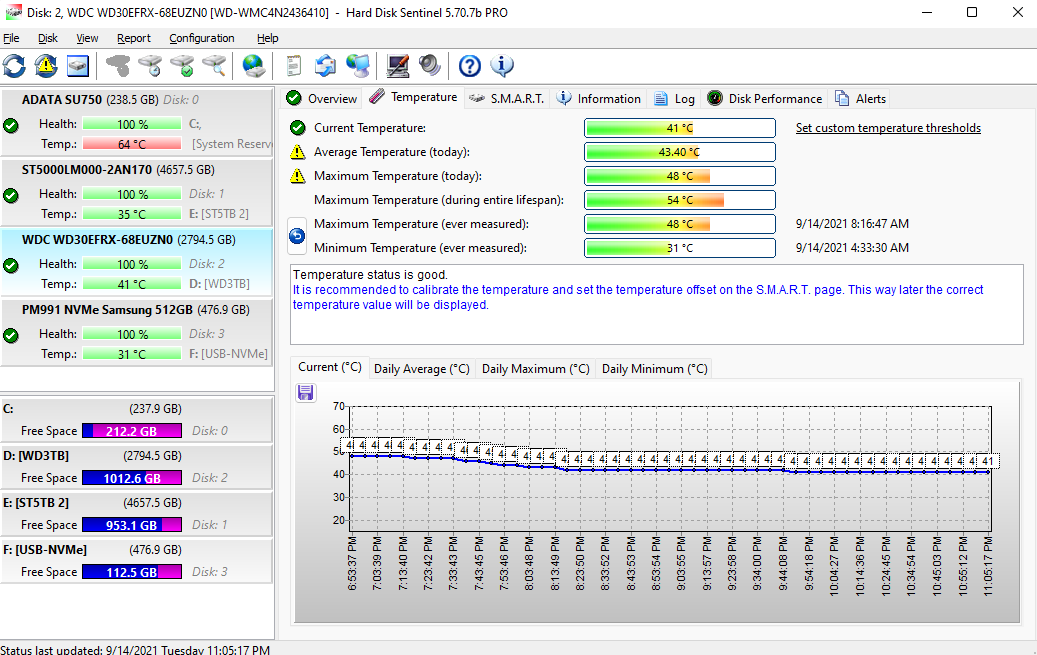
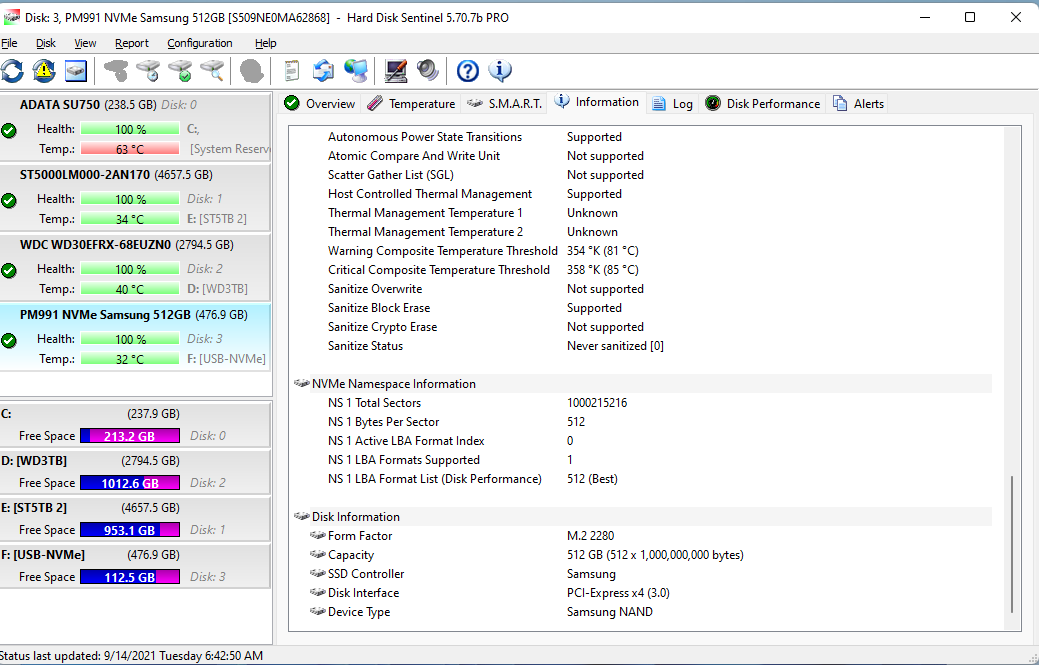
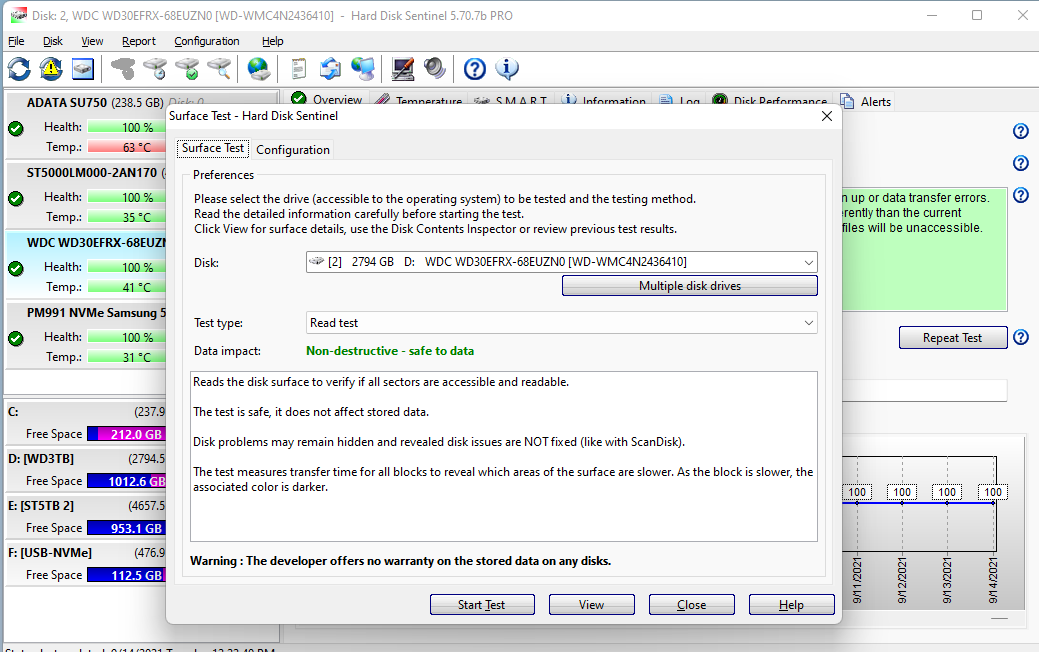
Examples of a third-party Windows monitoring UI (not our product). Layouts change by version and theme; use them only as visual context.

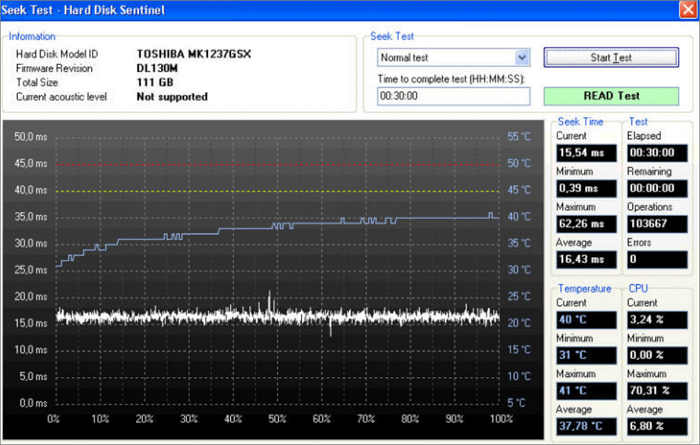
UIs change between versions, themes, and translations. Treat labels as hints: verify critical attributes against your drive vendor’s papers and Windows Device Manager / Event Viewer when behavior and graphs disagree.
First 30 days
Software is instant; trust is earned. Use the opening month to teach the graphs what “normal” means on your desk.
Week 1
Log idle temps nightly; note firmware versions; silence noisy alerts.
Week 2
Run your heaviest real workload—exports, games, compiles—and watch peaks.
Week 3
Restore a random file from each backup tier; fix what fails.
Week 4
Note enclosure chipsets, undervolts, and “weird but stable” attributes.
Keep the monthly snapshot habit: same day of the month, same workload class (idle Sunday night vs. post-render Friday). If you add a drive, reset baselines instead of comparing mixed histories. When you outgrow sticky notes, promote the roster to a shared doc your future self—or your team—can open without guessing passwords.
Fictionalized timelines inspired by support patterns—published on harddisksentinel.org to show how people combine temperature and SMART before calling disaster.
Travel laptop
Fan intake packed with lint; SMART stayed polite while CPU throttled—cleaning fixed both graphs.
Small studio
CRC errors climbed on one port only—dock firmware update plus new cable silenced ghosts.
Home NAS
Pulling the disk to SATA revealed pending sectors the appliance UI smoothed over.
Gaming PC
A sticker-thin pad under a Gen4 drive throttled after patches; SMART wear looked fine while queue depth cried—adding a real heatsink dropped peaks 18°C.
Office tower
Firmware updater rebooted into aggressive spin-up; docked laptop saw link resets until a TB4 cable—not the disk—was replaced.
Archivist
SMART stayed green while a silent copy introduced bit errors—monthly verify jobs caught drift before the master went cold.
Dual-boot
Different drivers polled the same NVMe at different intervals—aligning firmware and disabling aggressive sleep on one OS stopped phantom pending chatter.
These vignettes are composites; they are here to show how people combine thermals, cables, and logs—not to predict your drive’s fate. When your case rhymes with one, copy the investigation order, not the ending.
Outside the disk
SMART tells a spindle story—not every driver bug, RAM bitflip, or cloud sync loop. When symptoms and storage graphs diverge, widen the investigation.
Bitrot and bad RAM mimic disk corruption—verify memory and run filesystem tools when SMART stays polite.
Encryption events look “healthy” to SMART—offline backups remain non-negotiable.
PSU sag, flaky docks, and under-voltage can destabilize link training—SMART may only show the aftermath as interface errors.
OneDrive or Dropbox retry storms can look like disk torture—watch disk queue and network together before blaming the platter.
When the OS blames storage but SMART disagrees, walk the failure signs article with Event Viewer open—half the “disk death” threads end in drivers or RAM.
Start here
Independent guides for HDD, SSD, USB/NAS, and alerts. Software itself is only from the official publisher.
Practical HDD checks and failure signs in plain language.
Open topic →
SSD health plus why heat during sustained writes matters.
Open topic →
External and NAS monitoring notes when the enclosure hides SMART.
Open topic →
Interpret warnings, then copy files while the disk still cooperates.
Open topic →
Installers
We do not host installers on this domain. Keep your downloads in one trusted source and verify release details before installing.
Disclaimer
Trademarks belong to their owners. This site is editorial only and offers guidance content.