
How to check hard drive health
A workflow centered on trend lines—not single snapshots—when using monitoring tools such as Hard Disk Sentinel.
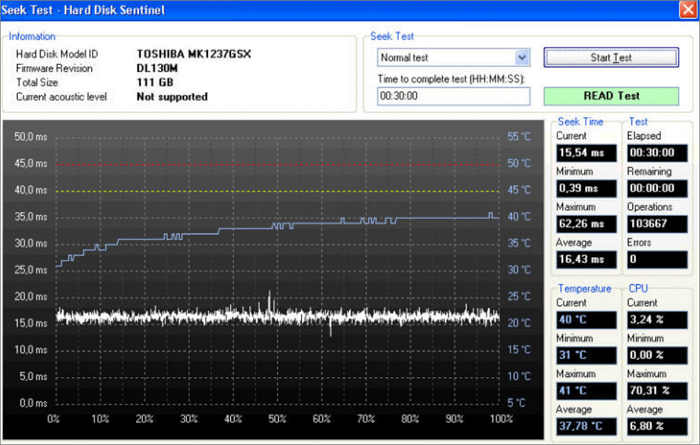
Establish a baseline
Download monitoring utilities from the official source, install on a quiet day, and let the machine idle for fifteen minutes before recording numbers. Note health percentage, reallocated sector counts, power-on hours, and typical idle temperature for each drive.
Your baseline matters more than internet anecdotes—a warm laptop drive idling at 45 °C may be completely normal in summer while a desktop drive at the same temperature with six fans might indicate paste or mounting issues.
SMART attributes to watch first
Reallocated sectors confirm the drive remapped weak spots. Occasional increments happen on heavily used disks; rapid climbs do not. Pair this with pending sectors—those awaiting decision—and uncorrectable errors which often precede visible file corruption.
UDMA CRC interface errors frequently implicate cables or docks. Before assuming platter failure, swap hardware and retest.
Temperature as context
Graphs beat spot readings. If peaks correlate with gaming or batch exports, cooling tweaks beat premature RMAs. If averages climb while workload stays flat, inspect airflow dust filters and fan curves.
Escalation ladder
- Refresh backups and verify restore drills—not just file copies.
- Export SMART text logs for trend comparison next week.
- Run short self-tests monthly; schedule extended tests during idle nights when attributes look suspicious.
- Plan replacement budget when slopes accelerate—don’t wait for clicking noises.